A quick guide for working with your designer
Whether you’re working with a designer, VA, or client, knowing how to add a contributor in Showit makes collaboration easier without sharing your login details. In this guide, I’ll walk you through exactly how to add contributor access in Showit, step by step.
Step 1: Log in to your Showit Account
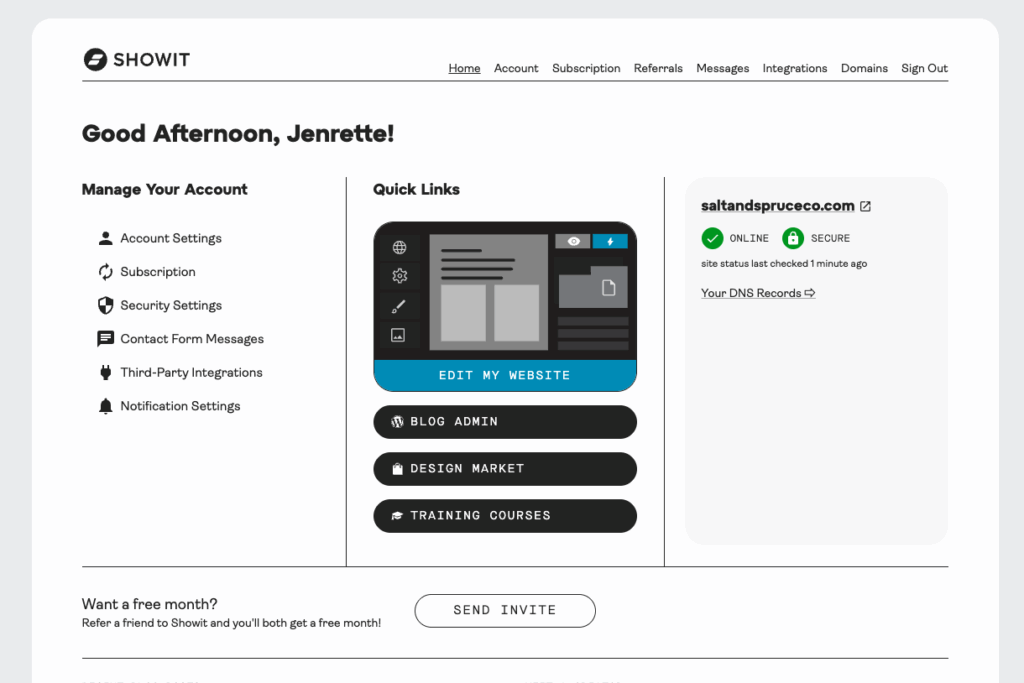
Head over to showit.co and log in to your account using your credentials. You’ll land on your Showit dashboard.
Step 2: Access Your Account Details
Once logged in, look to the top navigation on your screen. Click on Account to access the page for contributor access.
Step 3: Invite Your Designer
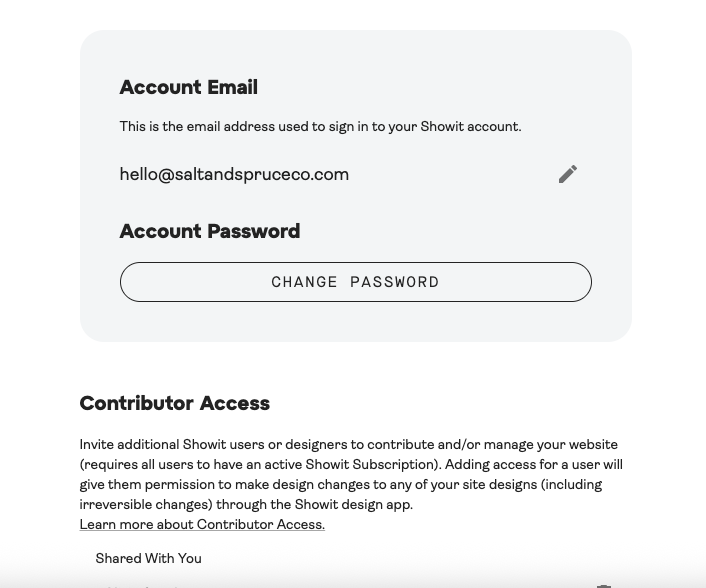
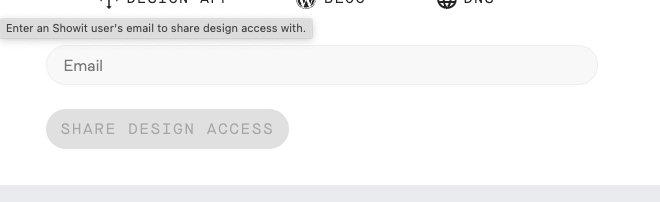
Scroll down to the section titled “Contributor Access”. Enter my email address (or your designers) in the box, then click “Share Design Access”.
💡 If you’re working with me, use:
hello@saltandspruceco.com
This gives me the access I need to work on your site without changing billing or account settings.
Step 5: You’re All Set!
Your designer will receive an email invitation to contribute to your site. Once accepted, they’ll be able to jump in and start designing.
A Quick Note on Access
Adding a designer doesn’t give them access to your billing information or private account details — just what they need to help build or update your site.
If you’re unsure at any point or want me to double-check your settings, feel free to reach out!
Looking for more Showit tips?
Check out more resources on the blog or reach out directly with any questions.
+ view the comments