If you’re a wedding professional—planner, photographer, florist, stationer, venue coordinator—you’ve likely heard about Showit. Maybe you’ve scrolled through template shops, admired the drag-and-drop freedom, or wondered if it’s actually worth the switch from whatever platform you’re currently using.
Here’s what you need to know: Showit isn’t just another website builder. It’s a tool that gives you complete design control without requiring you to know a single line of code. For creative businesses that rely on visual storytelling, that matters.
This guide will walk you through everything you need to understand about Showit—what it is, why it works particularly well for wedding professionals, how to set it up, optimize it for search, and decide if it’s the right fit for your business.
What Showit Actually Is (And How It’s Different)
Showit is a drag-and-drop website platform built specifically for designers and creatives. Unlike template-based builders that lock you into rigid layouts, Showit lets you place elements anywhere on the page with pixel-perfect precision. Think of it like working in Canva or Photoshop, but for your entire website.
The Technical Foundation
Showit operates on a canvas-based system. Every element on your page—text blocks, images, buttons, forms—can be positioned exactly where you want it. There’s no grid system forcing you into columns. No pre-set sections limiting your creativity.
The platform pairs with WordPress for blogging functionality. Your Showit site handles all the visual pages (homepage, about, services, portfolio, contact), while WordPress powers your blog in the background. This integration means you get complete design freedom on the front end and robust SEO capabilities on the back end.
When someone visits your blog, they’re technically on a WordPress page, but it’s seamlessly integrated with your Showit design. Most visitors never notice the difference.
How Showit Compares to Other Platforms
Showit vs. Squarespace: Squarespace offers beautiful templates and is easier to learn initially, but you’re limited to their pre-built sections and layouts. Showit requires more of a learning curve but gives you infinitely more design control. Squarespace has better native eCommerce; Showit is better for portfolio-heavy, service-based businesses.
Showit vs. WordPress: A fully custom WordPress site offers unlimited functionality through plugins and coding, but requires technical knowledge (or hiring a developer for every update). Showit gives you visual control without code. WordPress is better for complex functionality; Showit is better for designers who want control without the technical overhead.
Showit vs. Wix: Both are drag-and-drop builders, but Wix can feel clunky for professional brands. Showit’s interface is cleaner, more intuitive for designers, and produces sites that feel more polished. Wix has more built-in features; Showit has better design quality and flexibility.
Showit vs. Shopify: If you’re selling physical products with inventory management needs, Shopify wins. But for service-based wedding professionals who might sell a few digital products or templates, Showit (integrated with a simple eCommerce plugin or external platform) is often sufficient.
Why Wedding Professionals Gravitate Toward Showit
Wedding industry websites need to do a few specific things exceptionally well: showcase portfolio work beautifully, communicate a clear brand experience, and guide potential clients toward inquiry without friction.
Showit handles all three in ways other platforms struggle to match.
Visual Storytelling Comes First
Your work is inherently visual. Whether you’re designing florals, capturing moments, planning entire events, or creating custom stationery, your website needs to reflect that artistry immediately.
Showit’s design freedom means you can create:
- Full-width hero images that capture attention the moment someone lands on your page
- Custom gallery layouts that showcase your work exactly how you envision it—not how a template dictates
- Unique portfolio presentations for different wedding styles, venues, or service tiers
- Before-and-after reveals for planners and designers
- Image-heavy pages that don’t sacrifice load speed (when optimized correctly)
Wedding professionals live and die by their portfolio. Showit doesn’t get in the way of that.
You Can Update Your Site Yourself
Once your site is built, you’re not locked into a designer for every small tweak. This matters more than you might initially realize.
Wedding professionals need to update their sites frequently:
- Swapping out portfolio images as you book new weddings
- Updating pricing or package details seasonally
- Adding new services or specializations
- Changing availability status
- Updating vendor partnerships or preferred venues
- Refreshing testimonials as new reviews come in
With Showit, all of these updates are manageable on your own. You don’t need to submit a ticket, wait for a developer’s availability, or pay for minor changes. You log in, make the update, and publish.
For business owners who value autonomy and quick turnarounds, this is significant.
It Integrates With the Tools You Already Use
Wedding professionals typically rely on a specific tech stack: a CRM for client management, an email platform for marketing, a scheduling tool for consultations, and payment processing for contracts and invoices.
Showit integrates smoothly with:
- HoneyBook (embed contact forms, questionnaires, or scheduling links)
- Dubsado (contact forms, scheduler widgets)
- Flodesk (email signup forms with custom styling)
- ConvertKit (email list building)
- Calendly (consultation booking)
- Acuity Scheduling (appointment management)https://www.dubsado.com/
- Stripe (payment links or buttons)
- PayPal (payment processing)
- Google Analytics (traffic tracking)
- Facebook Pixel (ad tracking and retargeting)
Most integrations work through simple embed codes. You copy the code from your tool, paste it into Showit, and it works. No complicated plugin installations or compatibility issues.
The Learning Curve (And What It Actually Requires)
Showit is intuitive, but it’s not instant. Understanding what you’re actually committing to matters.
Initial Setup and Onboarding
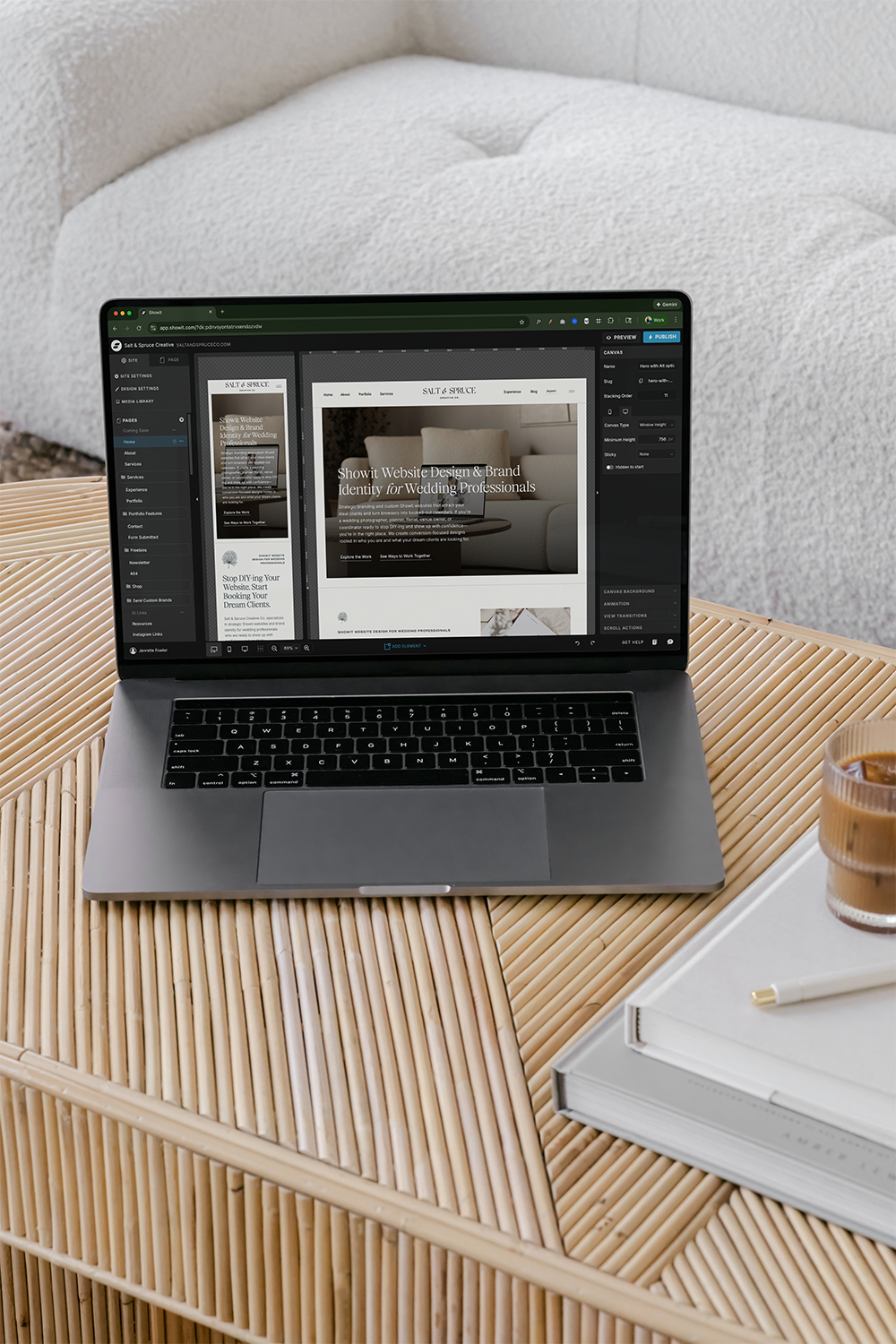
When you first log into Showit, you’ll see a blank canvas or template. The interface includes:
- Left sidebar: Pages, site settings, blog settings
- Top toolbar: Design elements (text, images, buttons, shapes, forms, videos)
- Canvas area: Your actual page design
- Right sidebar: Element styling (fonts, colors, spacing, animations)
The basics—adding text, uploading images, creating buttons—are straightforward. You can figure these out in an hour or two.
The learning curve steepens when you start working on:
- Mobile layouts: Showit requires you to design separate mobile versions of every page. This isn’t automatic responsive design like Squarespace. You manually adjust how each element appears on mobile devices.
- Animations and interactions: Showit offers entrance animations, hover effects, and scroll-triggered movements. These can elevate your design, but they require experimentation.
- Blog integration: Connecting WordPress, setting up blog templates, and configuring settings involves a few more steps than other platforms.
- SEO optimization: Unlike some platforms that handle basics automatically, Showit requires you to manually input page titles, meta descriptions, and alt text.
Time Investment
If you’re working with a template: expect 10-20 hours to fully customize it, add your content, set up integrations, and optimize for mobile and SEO.
If you’re building from scratch: expect 40-80 hours depending on complexity, number of pages, and your comfort level with design.
Most wedding professionals fall into the template category. Building from scratch usually only makes sense if you have very specific design needs or you’re working with a designer.
Common Beginner Mistakes
Not designing for mobile first. Many people design their desktop site beautifully, then try to adapt it for mobile as an afterthought. This leads to clunky mobile experiences. Design mobile alongside desktop from the start.
Using too many fonts. Showit gives you access to Google Fonts and the ability to upload custom fonts. Beginners often use 4-5 different fonts. Stick to 2-3 maximum for a cohesive brand.
Overloading pages with animations. Entrance animations are fun, but too many make your site feel gimmicky and can slow load times. Use sparingly.
Forgetting about image optimization. Showit doesn’t automatically compress images. Upload large, unoptimized files and your site will load slowly. Always compress images before uploading (aim for under 200KB per image).
Not testing on actual devices. The Showit mobile preview is helpful, but it’s not perfect. Always test your site on real phones and tablets before launching.
Templates vs. Custom Design (And How to Choose)
Not every business needs a fully custom website. Sometimes a template is the smarter move—it’s faster, more affordable, and still gives you plenty of room to make it your own.
When Templates Make Sense
Templates work well when:
- You’re launching or relaunching quickly. If you need a site live in 2-4 weeks, a template is your best path.
- Your brand is relatively straightforward. If your visual identity fits within common wedding industry aesthetics (light and airy, moody and editorial, bold and modern), templates exist for that.
- You want design quality without the custom price tag. Good templates range from $150-$500. Custom design starts around $3,000-$5,000 and goes up from there.
- You’re comfortable making updates on your own. Templates come with video tutorials and documentation, but you’ll be doing the customization yourself.
- Your business model is established. If you know your services, pricing structure, and client journey, you can find a template that supports that.
When Custom Design Makes Sense
Custom design is worth considering when:
- Your brand is distinct and needs a site to match. If your visual identity, messaging, or service offering doesn’t fit standard templates, custom makes sense.
- You have specific functionality requirements. Maybe you need a custom client portal, a unique gallery filtering system, or a specialized inquiry process. Custom builds can accommodate this.
- You want a layout tailored to your exact client journey. A designer can map your website structure specifically to how your ideal clients move from discovery to inquiry to booking.
- You’re ready to invest in a long-term digital presence. Custom sites are built to last. If you’re planning to keep this site for 3-5+ years with minor updates, the investment makes more sense.
- You don’t want to touch the technical side. With custom design, the designer handles everything: setup, design, copywriting support, SEO basics, integrations, mobile optimization, and training.
The Middle Ground: Template Customization
Many wedding professionals choose a third option: buying a template and hiring a designer to customize it significantly.
This approach gives you:
- Faster timeline than full custom (3-4 weeks vs 8-12 weeks)
- Lower cost than full custom ($1,500-$3,000 vs $4,000-$8,000)
- Professional polish without starting from scratch
- Some custom elements added to fit your specific needs
This often looks like: purchasing a template, then hiring someone to adjust the layout, add custom sections, integrate specific tools, optimize fully for SEO and speed, and train you on updates.
What to Look for in a Showit Template
If you’re going the template route, not all templates are created equal. Here’s what actually matters.
Design Quality and Cohesion
Clean structure. The design should feel cohesive and intentional, not cluttered or overly trendy. Look for templates with clear hierarchy, intentional whitespace, and layouts that guide the eye naturally.
Timeless aesthetic. Avoid templates that lean heavily into current design trends (think: excessive scripted fonts, overly busy patterns, or styles that feel very “2024”). You want something that will age well over the next few years.
Professional typography. The template should use well-paired fonts with appropriate sizing and spacing. If the text feels hard to read or the fonts clash, keep looking.
Brand flexibility. Can you easily swap colors and maintain cohesion? Or is the template so tied to specific colors that changing them breaks the design? Good templates are built for easy brand customization.
Mobile Optimization
This is non-negotiable. Showit requires separate mobile layouts, and not all template designers put equal effort into both versions.
Before buying, check:
- Are mobile screenshots included? If the template shop only shows desktop views, that’s a red flag.
- Is text readable on mobile? Font sizes should be large enough to read comfortably on a phone.
- Do images scale well? Photos should look intentional on mobile, not awkwardly cropped or stretched.
- Is navigation functional? The mobile menu should be easy to access and use.
- Are buttons easily clickable? Buttons need proper sizing and spacing for touch screens.
Many wedding pros make the mistake of focusing only on desktop design. Over 60% of your website traffic will likely come from mobile devices. Your mobile experience matters just as much—if not more—than desktop.
Page Variety and Structure
Look at what pages are included:
- Homepage
- About page
- Services or offerings page
- Portfolio or gallery page
- Contact page
- Blog template
Better templates also include:
- Service detail pages (for different wedding packages or tiers)
- FAQ page
- Testimonials page
- Investment or pricing page
- Thank you pages (for form submissions)
More pages means more flexibility. Even if you don’t need all of them immediately, having the structure built out saves time later.
Customization Potential
Easy color changes. You should be able to update brand colors in one place and have them apply throughout the site.
Flexible layouts. Can you easily add or remove sections? Duplicate pages? Adjust spacing without breaking the design?
Reusable elements. Good templates include styled buttons, forms, and sections you can copy and reuse across pages.
Font flexibility. You should be able to change fonts without the design falling apart. Templates that rely too heavily on one specific font often look broken when you swap it out.
Clear Instructions and Support
Setup guide. The template should include step-by-step instructions for installation and customization—ideally with video walkthroughs.
Customization tutorials. Look for guidance on how to change colors, swap images, edit text, and adjust layouts.
Customer support. Does the template designer offer email support? A Facebook group? Office hours? Know what you’re getting before you buy.
Updates. Does the designer update templates when Showit releases new features? This isn’t always guaranteed, but it’s valuable.
Template Shops Worth Exploring
A few Showit template shops consistently deliver quality work for wedding professionals:
- Tonic Site Shop (clean, editorial templates)
- Northfolk (clean, minimalistic, editorial templates)
- The Coastal Edit (our template shop! coastal, organic aesthetics)
- Davey & Krista (classic, refined templates)
- With Grace and Gold (classic, elegant, perfect for wedding pros)
Prices typically range from $500-1,400 depending on complexity and what’s included.
Setting Up Your Showit Website: Step-by-Step
Whether you’re using a template or building custom, here’s the actual process.
Step 1: Purchase Your Domain
Before you even touch Showit, secure your domain name. You can buy domains through:
- Google Domains (now Squarespace Domains)
- Namecheap
- GoDaddy (functional but upsell-heavy)
Choose a domain that’s:
- Easy to spell and remember
- Relatively short (under 20 characters if possible)
- Reflective of your business name
- A .com if available (other extensions work, but .com is still most trusted)
Cost: $10-$20 per year
Step 2: Sign Up for Showit
Go to Showit.co and select a plan. Showit offers:
- Basic Plan ($24/month, billed annually): One website, includes blogging
- Advanced Plan ($34/month, billed annually): Up to five websites, includes blogging
Most wedding professionals need the Basic Plan unless you’re running multiple brands or offering white label services.
Showit offers a 14-day free trial. Start there before committing.
Step 3: Choose or Create Your Design
If using a template: Purchase and download it. Upload the template file to your Showit account through the dashboard. Showit will install it automatically.
If building custom: Start with a blank canvas or work with a designer who will build directly in your account.
Step 4: Connect Your Domain
In your Showit account, go to Settings > Domains. Follow the prompts to connect your domain. This involves:
- Logging into your domain registrar (wherever you bought the domain)
- Updating DNS settings with the records Showit provides
- Waiting 24-48 hours for propagation (though it’s usually faster)
Showit’s support documentation walks through this process for every major domain registrar. It sounds technical but it’s mostly copy-and-paste.
Step 5: Set Up WordPress for Blogging
Showit partners with WordPress for blog functionality. In your Showit dashboard:
- Go to Blog Settings
- Click “Set Up WordPress”
- Follow the prompts to create your WordPress login
You’ll design your blog layout in Showit (the visual template for how posts appear), but you’ll actually write and publish posts in WordPress.
This split feels odd at first but makes sense once you’re in it. Showit handles the design; WordPress handles the content management and SEO.
Step 6: Customize Your Design
This is where you make the site yours. Depending on your starting point:
For templates:
- Swap placeholder images with your own photography
- Update all text with your brand messaging and service details
- Change colors to match your brand palette
- Adjust fonts if needed (though many templates work well as-is)
- Add your logo and favicon
- Customize buttons and calls-to-action
- Update contact forms with your email address
- Connect any third-party integrations (CRM, email platform, analytics)
For custom builds:
- Work closely with your designer through revision rounds
- Provide feedback on layouts, functionality, and flow
- Supply all content (copy, images, logos, brand colors)
- Review designs in stages (wireframes, desktop design, mobile design, final review)
Step 7: Design for Mobile
For every page, click the mobile view icon and adjust the layout. This isn’t optional.
Common mobile adjustments:
- Stack elements that sit side-by-side on desktop
- Increase font sizes for readability
- Resize images to fit mobile screens
- Adjust spacing (often tighter on mobile)
- Ensure buttons are large enough to tap easily
- Hide elements that don’t translate well to small screens
Test on your actual phone, not just the Showit preview.
Step 8: Optimize for SEO
Showit doesn’t auto-fill SEO settings. You need to manually add:
For every page:
- Page title (what shows in search results)
- Meta description (the preview text in search results)
- URL slug (keep it short and descriptive)
- Alt text for all images
In site settings:
- Site title
- Site description
- Favicon
- Social sharing image (what appears when someone shares your site)
In WordPress (for blog):
- Install Yoast SEO plugin
- Configure settings for blog posts
- Set up XML sitemap
More on SEO optimization in the next section.
Step 9: Set Up Integrations
Connect the tools you’ll be using:
Analytics: Add your Google Analytics tracking code in Showit settings under Site > Analytics.
Email marketing: Embed signup forms from Flodesk, ConvertKit, or your platform of choice. Most provide embed codes you paste directly into Showit.
CRM forms: If using HoneyBook or Dubsado, embed contact forms following their specific instructions.
Social media: Link your Instagram, Pinterest, and other platforms in the footer or header.
Scheduling tools: Embed Calendly or Acuity widgets where you want clients to book consultations.
Step 10: Test Everything
Before launching, click every button, submit every form, and browse every page on both desktop and mobile.
Check:
- Do all links work?
- Do forms deliver to the correct email?
- Do images load properly?
- Is the site readable on various devices?
- Are there any typos or placeholder text still visible?
- Do animations work smoothly?
- Is the mobile menu functional?
Ask a friend or colleague to browse your site and report anything that feels off.
Step 11: Launch
Once everything checks out, remove the password protection in Showit settings and your site goes live.
Announce it. Share it. Start driving traffic to it.
SEO on Showit (Yes, It’s Possible—Here’s How)
One concern that comes up often: can Showit sites actually rank on Google?
The answer is yes, but it requires intention. Showit doesn’t automate SEO the way some platforms do. You need to manually optimize—but you have all the tools to do it well.
Understanding Showit’s SEO Structure
Static pages (homepage, about, services, contact) are built in Showit. For these pages, you manually add:
- Page titles
- Meta descriptions
- Alt text for images
- URL slugs
- Header tags (H1, H2, H3 through text styling)
Blog posts live in WordPress, which has robust SEO capabilities through plugins like Yoast or Rank Math. Your blog is where most of your ongoing SEO work happens.
On-Page SEO Checklist for Showit Pages
For each page on your site:
Page Title (Title Tag):
- Include primary keyword
- Keep under 60 characters
- Make it compelling (this shows in search results)
- Example: “Wedding Florist in Charleston | Romantic, Garden-Inspired Designs”
Meta Description:
- Summarize the page content
- Include keywords naturally
- Keep under 155 characters
- Include a call-to-action when relevant
- Example: “Charleston wedding florist specializing in romantic, garden-inspired floral designs for coastal weddings. View our portfolio and inquire today.”
URL Slug:
- Keep it short and descriptive
- Use hyphens between words
- Include keywords when natural
- Example: /wedding-florist-charleston (not /page-12345 or /services-offerings-weddings-charleston-sc-area)
Header Tags:
- Use one H1 per page (usually your main headline)
- Use H2s for major sections
- Use H3s for subsections
- Showit handles this through text styling—just style your headers as “Heading 1,” “Heading 2,” etc.
Alt Text for Images:
- Describe what’s in the image
- Include relevant keywords naturally
- Be specific: “Bride holding blush pink peony bouquet at Magnolia Plantation wedding” instead of “wedding flowers”
- Don’t keyword stuff: “wedding flowers Charleston wedding florist South Carolina” is spammy
Internal Linking:
- Link between your own pages
- Example: Link from your about page to your services page
- Link from blog posts to relevant service pages
- Use descriptive anchor text: “view our wedding planning services” instead of “click here”
Blog SEO Strategy
Your blog is your primary SEO tool. This is where you target long-tail keywords, answer common questions, and establish authority.
Install Yoast SEO (free WordPress plugin) to help optimize each post:
- Focus keyword for each post
- Readability analysis
- Meta description preview
- XML sitemap generation
Content strategy for wedding professionals:
Write blog posts targeting questions your ideal clients are searching:
- “How much does a wedding planner cost in [your city]?”
- “Wedding photography timeline for [venue type] weddings”
- “How to choose wedding flowers for a [season] wedding”
- “What to look for in a [your service] for your wedding”
- “Real wedding at [local venue]” (portfolio posts)
Blog post optimization checklist:
- Target one primary keyword per post
- Include keyword in title, first paragraph, and throughout naturally
- Use header tags (H2, H3) to structure content
- Add alt text to all images
- Link to relevant service pages
- Include internal links to other blog posts
- Keep posts 1,500+ words for topics that need depth (like this guide)
- Update older posts periodically to keep them fresh
Technical SEO Essentials
Site speed:
Showit sites can load quickly, but you need to optimize images. Compress every image before uploading. Tools like TinyPNG or ShortPixel can help. Aim for under 200KB per image.
Mobile optimization:
Google uses mobile-first indexing. If your mobile site is slow or difficult to navigate, your rankings suffer. This is why designing intentionally for mobile matters.
SSL certificate:
Showit includes free SSL (the “https” instead of “http”). Make sure it’s active in your settings.
XML sitemap:
Showit generates this automatically for your static pages. WordPress generates one for your blog. Submit both to Google Search Console.
Google Search Console setup:
- Verify your site ownership
- Submit your sitemap
- Monitor indexing status
- Check for errors or issues
- See what keywords you’re ranking for
Google Business Profile:
If you serve a specific geographic area, claim and optimize your Google Business Profile. This helps with local SEO significantly.
Link Building for Wedding Professionals
SEO isn’t just what happens on your site. External links (backlinks) matter.
Ways to build quality backlinks:
- Get featured on wedding blogs (Style Me Pretty, Ruffled, Green Wedding Shoes)
- Partner with local venues and vendors (many list preferred vendors with links)
- Contribute guest posts to industry blogs
- Get listed in local directories (The Knot, WeddingWire, local wedding resources)
- Collaborate with other vendors and link to each other
- Earn press coverage for unique weddings or projects
Quality matters more than quantity. One link from a respected wedding publication is worth more than 50 links from random directories.
Common SEO Mistakes on Showit
Using images for text: If your headline is designed as an image file instead of actual text, Google can’t read it. Use real text elements in Showit.
Not updating blog consistently: Google favors sites that publish fresh content regularly. Aim for at least 2-4 blog posts per month.
Ignoring local SEO: If you serve specific cities or regions, include those locations in your content, page titles, and business listings.
Duplicate content: Don’t copy text from other sites (even vendor partners). Write original content.
Neglecting analytics: If you’re not tracking what’s working, you can’t improve. Monitor your Google Analytics and Search Console regularly.
When Showit Might Not Be the Right Fit
Showit is powerful, but it’s not for everyone. Being honest about limitations saves you time and frustration.
Showit Is Not Ideal If:
You need advanced eCommerce functionality. If you’re selling hundreds of products, managing inventory, offering complex shipping options, or need robust product filtering, Shopify or WooCommerce are better suited. Showit can integrate with simple eCommerce tools, but it’s not built for this.
You want a completely hands-off website experience. If you never want to think about your website, need someone else to handle every update, and don’t care about design control, a simpler platform with full management service might suit you better.
You’re working with a very limited budget. Showit costs $24/month minimum. Templates range from $150-$500. If budget is extremely tight, platforms like Squarespace ($16/month) or WordPress.com might be more accessible short-term.
Your business doesn’t rely heavily on visual content. If you’re running a business where visuals don’t drive decision-making (think: straightforward consulting services), the design freedom Showit offers might be unnecessary. A simpler platform would work fine.
You need multilingual functionality. Showit doesn’t have native multilingual support. If you need your site in multiple languages, platforms like WordPress with WPML plugin handle this better.
You require membership or course platform features. If you’re building a membership site, course platform, or complex client portal, you’ll need additional tools or a different platform entirely.
Platform Alternatives to Consider
If Showit doesn’t feel right, here’s where to look instead:
Squarespace: Best for beautiful templates with less customization need, eCommerce functionality, or if you want an easier learning curve.
WordPress (self-hosted): Best for maximum flexibility, complex functionality, or if you have developer support.
Shopify: Best for product-based businesses with inventory management needs.
Wix: Best for very simple sites or if budget is the primary concern.
Flothemes or Prophoto: Best if you’re a photographer wanting gallery-focused templates built on WordPress.
Making the Decision: Is Showit Right for Your Wedding Business?
Ask yourself these questions:
Does your business rely heavily on visual presentation? If showing your work beautifully is critical to booking clients, Showit excels here.
Do you want control over your site’s design and updates? If you like the idea of making changes yourself without waiting on a developer, Showit fits.
Are you willing to invest time learning the platform (or budget to work with someone who knows it well)? There’s a learning curve. You need to be realistic about whether you’ll invest the time or hire someone.
Do you value a website that can grow and evolve with your business? Showit scales well. You can start with five pages and expand to 50 without hitting platform limitations.
Is your tech comfort level at least moderate? You don’t need to know code, but you should be comfortable clicking around, figuring things out, and following tutorials.
Does your budget allow for $300-$500/year in platform costs? ($24/month for Showit + domain + any integrations or tools)
If you answered yes to most of these, Showit is worth seriously considering.
Moving Forward: Next Steps
If you’re leaning toward Showit, here’s how to actually move forward:
Start with the free trial. Sign up for Showit’s 14-day trial. Click around. Watch their tutorial videos. See if the interface makes sense to you.
Browse template shops. Even if you’re considering custom design, look at templates to see what’s possible. Save examples you love.
Audit your current site. What’s working? What’s not? What do you want your new site to accomplish that your current one doesn’t?
Gather your content. Start organizing your best portfolio images, client testimonials, service descriptions, and any copy you want to include.
Decide your path. Template, custom, or template customization? Your budget, timeline, and design needs will guide this.
Set a launch goal. Having a target date (even if it shifts) keeps you moving forward.
Final Thoughts
Showit offers wedding professionals something increasingly rare: a platform that’s both beautiful and functional, flexible without being overly complicated. It’s not perfect for everyone, but for businesses built on creativity, client experience, and visual storytelling, it tends to fit.
The platform has a learning curve, yes. It requires more intentional SEO work than some alternatives. But what you get in return is complete creative control, the ability to update your site on your own timeline, and a digital presence that actually represents the quality of your work.
If you’ve been considering a website refresh, if you’re tired of feeling limited by your current platform, or if you’re finally ready to move past the DIY site you’ve been limping along with, Showit might be exactly what you need.
And if you’d rather hand the process off to someone who knows the platform inside and out—someone who can build it, optimize it, and train you to manage it confidently—that’s an option too.
Whether you’re looking for a template customized to feel entirely yours or a fully custom build tailored to your exact business needs, the goal remains the same: a website that works as hard as you do and converts visitors into inquiries.
+ view the comments